1 - In a new window: Go to Google.com --> Sign out of all Google accounts <--- then sign into your RCDS Google account.
2 - THEN: Download the Adobe Installer: Creative Cloud
2a - Click download anyway when this window pops up: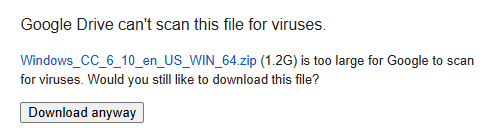
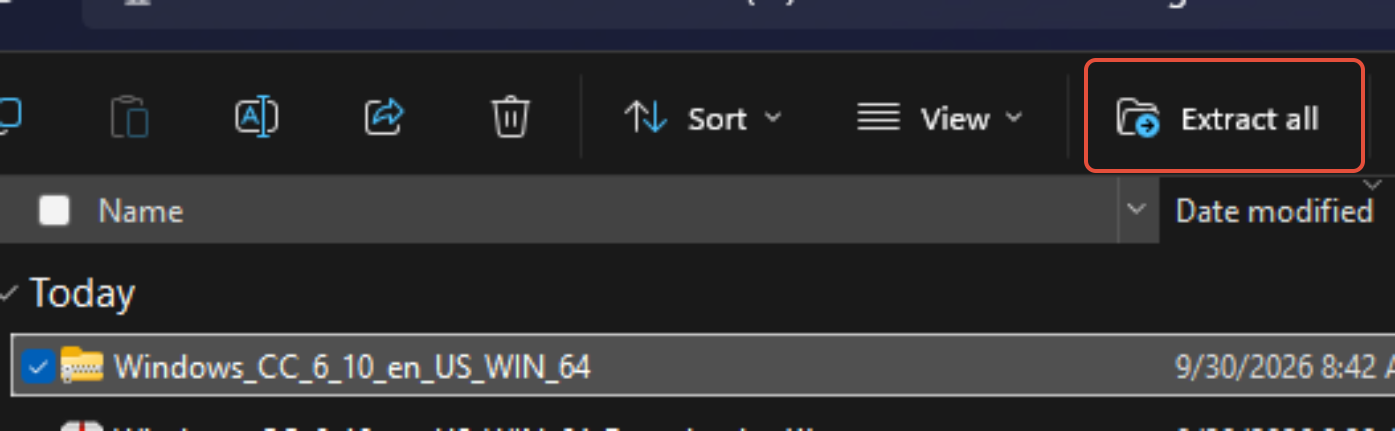
3 - Once it finishes downloading, open your Downloads folder and extract the zipped file:
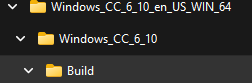
4 - Follow this path to get to the setup.exe
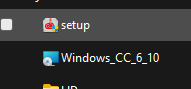
5 - Right click and run as administrator to install Creative Cloud
6 - Press the Windows key on your keyboard to bring up your search bar and type Creative, then open the app
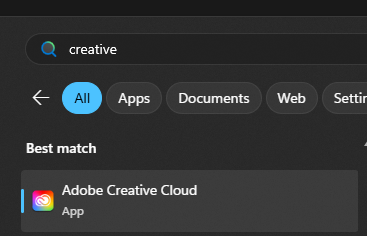
7 - Sign in with your RCDS Google credentials; Select Company or School Account; select your school email.
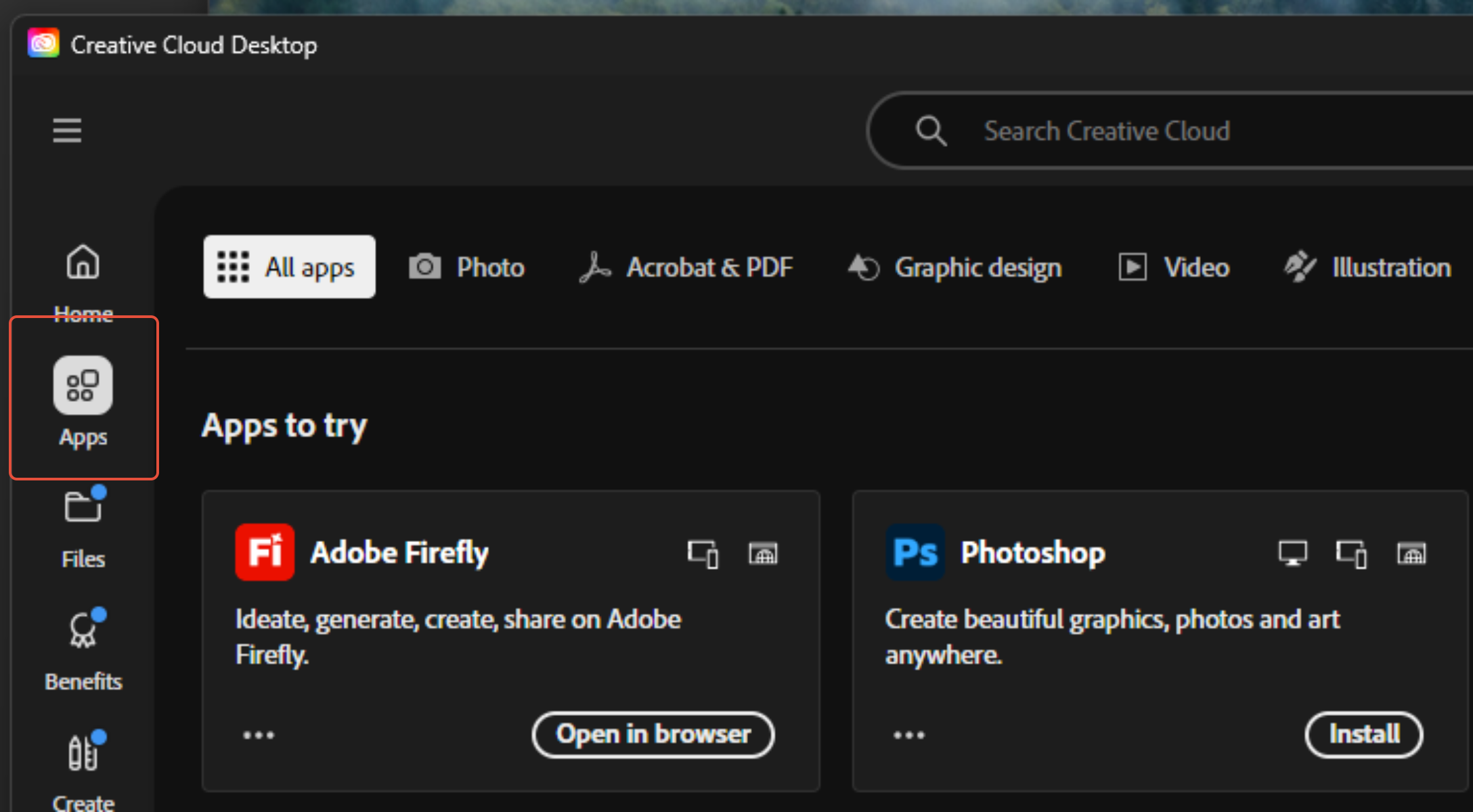
8- Once you are logged in, click on Apps, then look for the app you need for class. The apps should say Install and not Try.
9 - If you have any trouble following these directions, please feel free to stop by the Tech Center for some assistance.
Was this article helpful?
That’s Great!
Thank you for your feedback
Sorry! We couldn't be helpful
Thank you for your feedback
Feedback sent
We appreciate your effort and will try to fix the article