1 - In a new window: Go to Google.com --> Sign out of all Google accounts <--- then sign into your RCDS Google account.
THEN: Download the Adobe Installer: Creative Cloud
2- Click Download Anyway when you see the Can't Scan For Virus notification.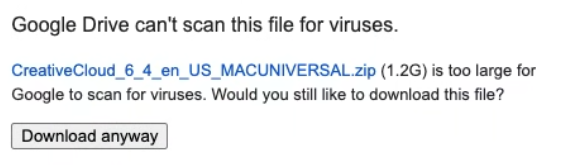
3 - Once it finishes downloading double click the file to launch the installer by:
a) Find the download on the top right of your Chrome window as show below.
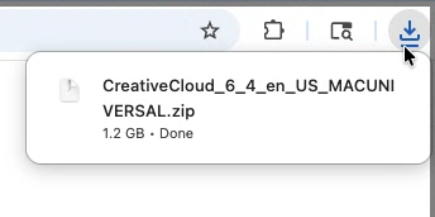
Or
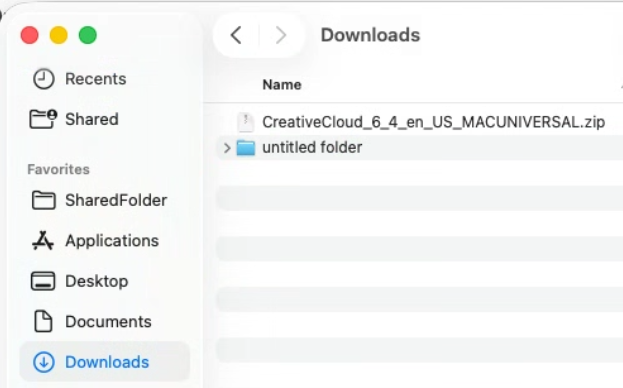
b) Open your Downloads folder and double click the installer:
Then double click the .pkg file above to start the install
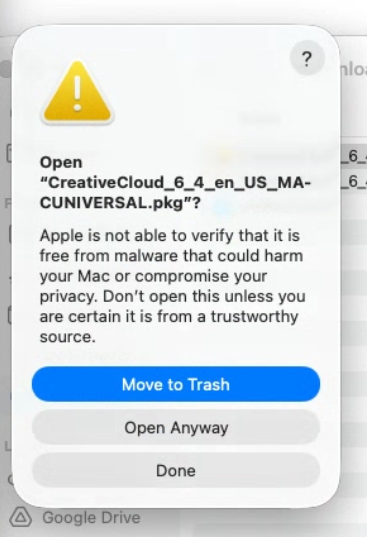
4 - After double clicking the .pkg file you will get a message like the one below:
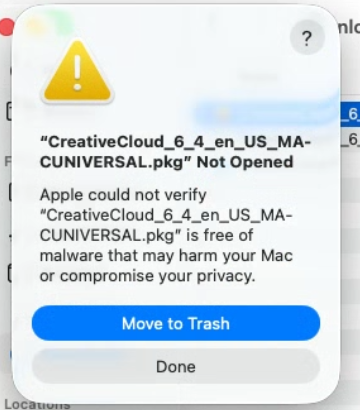
Close the warning window by clicking Done.
i) Click the Apple logo in the top-left corner of your screen and choose System Settings.
ii) In the left sidebar, click Privacy & Security (you may need to scroll down).
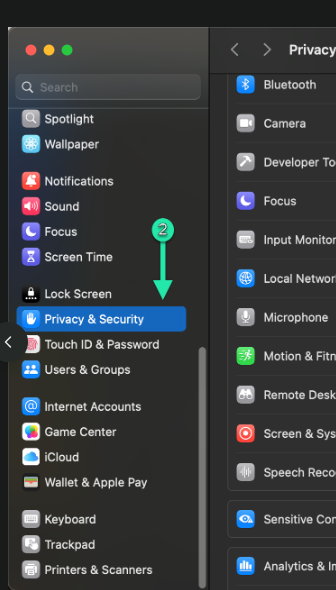
iii)- Scroll down to the Security section on the right.
iv)- Look for a message that says the installer (for example, “CreativeCloud_6_4_en_US_MA-CUNIVERSAL_2.pkg”) was blocked because Apple could not verify it, and you should see a button labeled Open Anyway next to it.
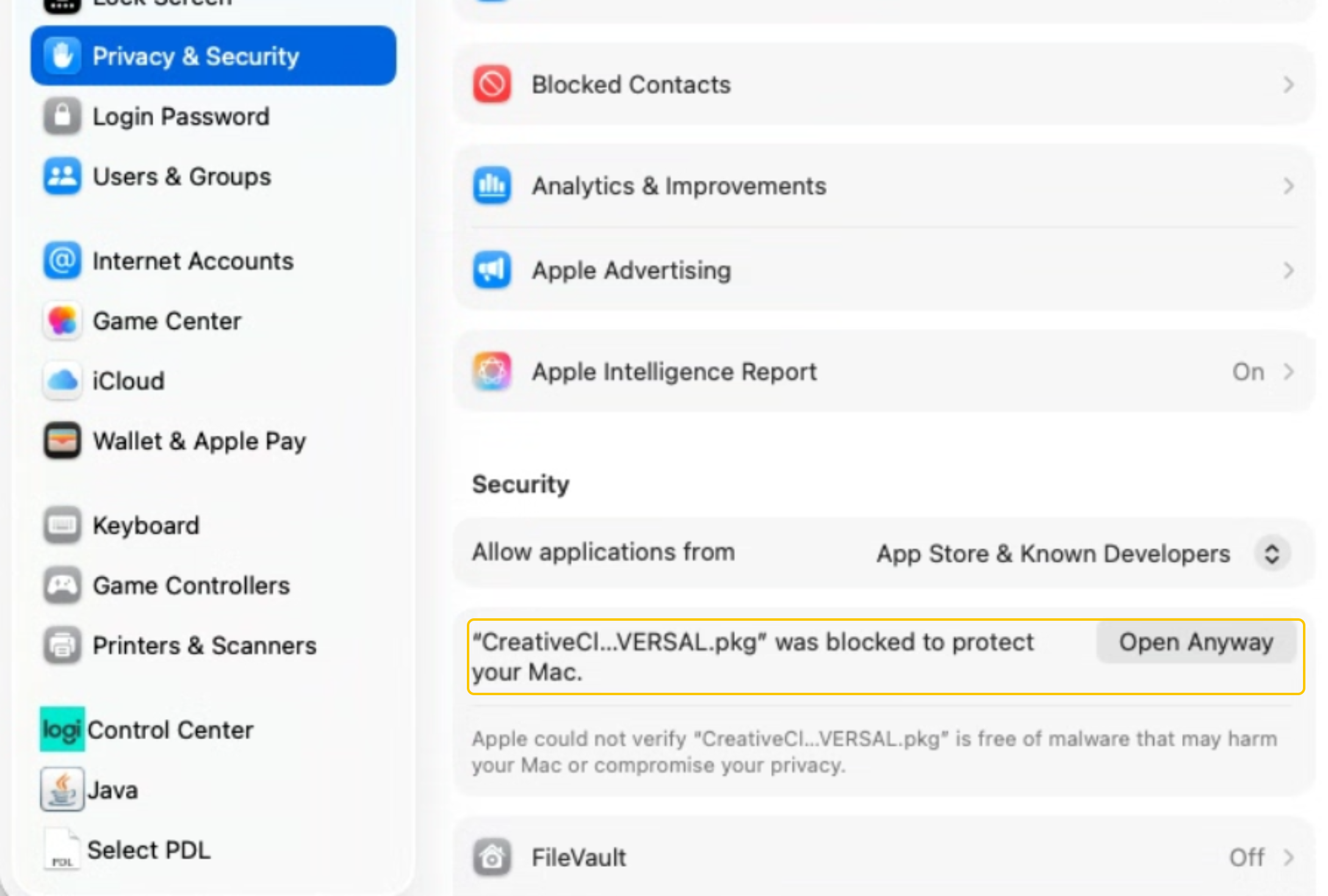 v)- Click Open Anyway.
 vi)- A new dialog will appear asking if you’re sure you want to open it; click Open and enter your Mac administrator password if prompted. The installer will now launch; from this point you can proceed through its normal installation steps.
5 - When the software successfully installs
open your Applications Folder from the Go menu (see below) 
OR
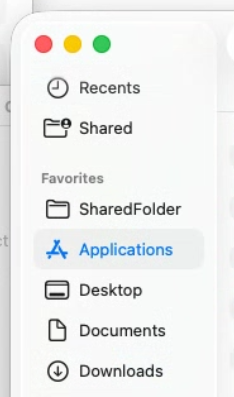
by clicking finder
and selecting Applications
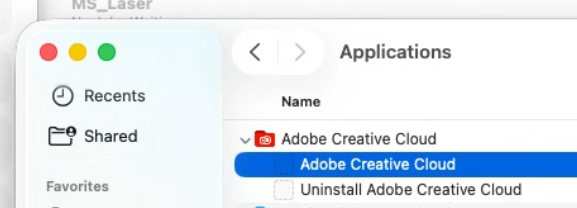
6 - Look for Adobe Creative Cloud ; Then click on Adobe Creative Cloud to open the application:
7 - Sign in with your RCDS Google credentials.
8 - Select the Apps on the left side of the Creative Cloud app: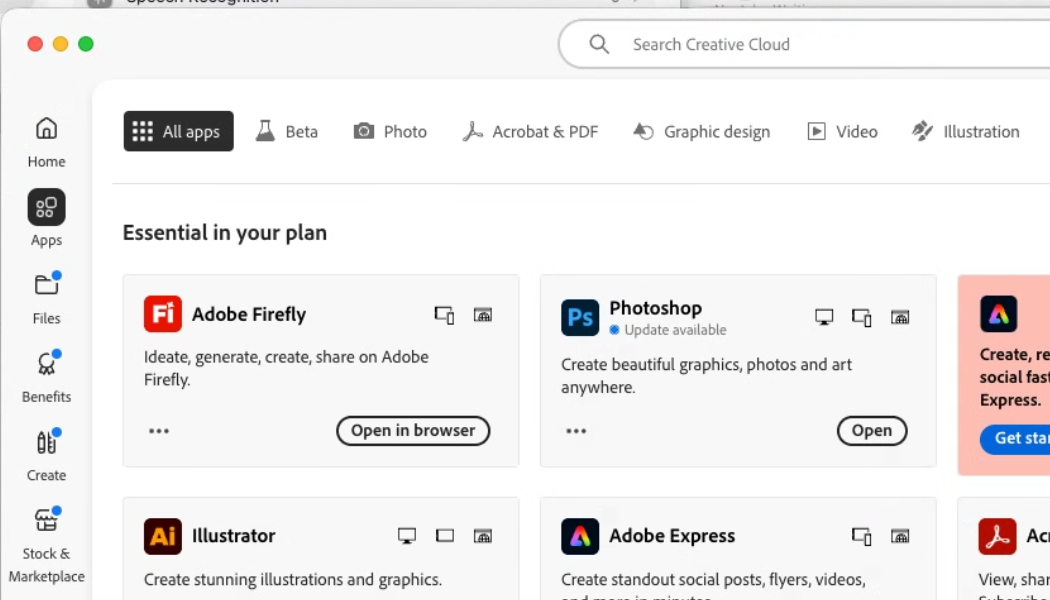
Download the app you need.
Was this article helpful?
That’s Great!
Thank you for your feedback
Sorry! We couldn't be helpful
Thank you for your feedback
Feedback sent
We appreciate your effort and will try to fix the article